Best CS2 Launch Options & Console Commands (FPS Boost) | Goowned
Boost your FPS, fine-tune your resolution, and configure Counter-Strike 2 like a pro.
FOLLOWING THE UPGRADE FROM CS:GO TO CS2, MOST LAUNCH OPTIONS AND CONSOLE COMMANDS REMAIN ESSENTIAL, WITH SEVERAL NEW SOURCE 2 IMPROVEMENTS.
RECOMMENDED GENERAL CS2 VIDEO SETTINGS:
- Brightness: 100%
- Aspect Ratio: Widescreen 16:9 (or 4:3 Stretched for wider player models)
- Resolution: 1920 x 1080 (or your monitor's native resolution)
- Display Mode: Fullscreen
- Refresh Rate: Your monitor's maximum rate (e.g., 144 Hz / 240 Hz)
- Laptop Power Savings: Disabled
- Boost Player Contrast: Enabled
- Wait for Vertical Sync (V-Sync): Disabled
- Current Video Values Preset: Custom
- Multisampling Anti-Aliasing Mode: 4x MSAA (Disabled on older PCs)
- Global Shadow Quality: High (shadows give crucial competitive intel; lower to Medium on budget rigs)
- Model / Texture Detail: Medium
- Texture Filtering Mode: Anisotropic 4x
- Shader Detail: Low
- Particle Detail: Low
- Ambient Occlusion: Disabled
- High Dynamic Range (HDR): Performance
- FidelityFX Super Resolution (FSR): Disabled (Highest Quality)
- NVIDIA Reflex Low Latency: Enabled (or Enabled + Boost)
WHAT ARE CS2 LAUNCH OPTIONS?
CS2 launch options (parameters) are custom startup flags that any Steam user can configure to tailor their game experience. They instruct Valve's Source 2 engine to apply specific technical settings the moment Counter-Strike 2 boots up. These parameters range from skipping intro videos and unlocking FPS to setting process priority and disabling unnecessary background inputs. Because launch options take priority over default settings, competitive players rely on them to squeeze maximum responsiveness out of their hardware.
HOW TO SET LAUNCH OPTIONS FOR CS2 IN STEAM
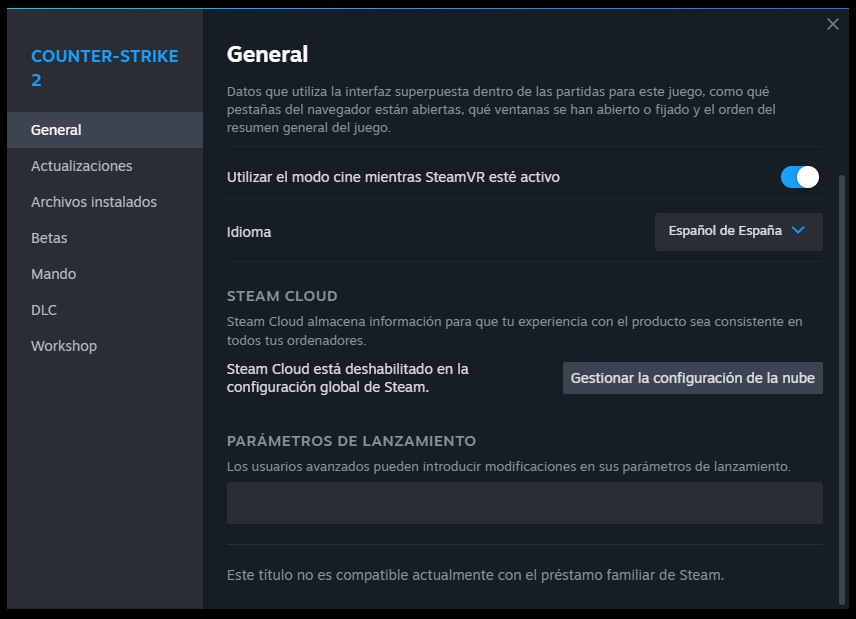
To configure and apply your custom CS2 launch options, follow these quick steps:
Note: These are entered inside the Steam client, not the in-game console.
- Right-click on Counter-Strike 2 in your Steam Library.
- Select Properties from the dropdown menu.
- Under the General tab, find the Launch Options text field and type your parameters separated by a single space.
- Close the window—Steam automatically saves your parameters and applies them next time you launch CS2.
THE BEST LAUNCH OPTIONS FOR CS2
While the in-game menu covers standard graphics settings, CS2 launch options let you streamline startup and optimize system resource allocation. Here are the most effective launch parameters for CS2:
-novidSkips the startup intro video so you load straight into the main menu faster.-nojoyDisables joystick and controller support to free up RAM and reduce input polling overhead.-tickrate 128Sets offline/local practice servers to 128 tick (official CS2 servers use Sub-Tick).-lvEnables low-violence mode for cleaner visuals.-language englishForces the game interface and callouts into English regardless of your Steam locale.-panoramaEnsures the Panorama UI loads with default acceleration.-consoleAutomatically enables and opens the developer console when CS2 starts.-nod3d9ex1Speeds up Alt-Tabbing between CS2 and your desktop.
ESSENTIAL CS2 CONSOLE COMMANDS
Below is a complete list of essential CS2 console commands covering server connectivity, HUD customization, audio testing, and keybinds:
connect x.x.x.xConnects directly to the specified server IP address.retryReconnects you to the last server you were playing on.disconnectImmediately disconnects you from the current match back to the main menu.volume xAdjusts master game volume (e.g., 0, 0.5, or 1).statusPrints detailed server diagnostics, player SteamIDs, and ping in console.exitCloses Counter-Strike 2 immediately.killForces character self-elimination (in practice/warmup servers).bind x yBinds a specific command to a key (e.g.,bind v noclip).cl_autowepswitch 0Prevents automatically switching to a picked-up weapon mid-fight.closeonbuy 1Automatically closes the buy menu after purchasing an item.hud_takesshots 1Automatically takes a scoreboard screenshot at the end of a match.gameinstructor_enable 0Disables pop-up beginner instructor hints.rate 786432Sets maximum network bandwidth rate for smooth sub-tick data transfer.cl_cmdrate 128Sets command packets sent per second (where applicable).cl_updaterate 128Sets update packets requested per second.voice_scale XAdjusts teammate voice chat volume (0.0 to 1.0).voice_loopback 1Plays back your own microphone audio so you can test mic clarity.hud_scaling XAdjusts the overall size of your HUD elements (default 0.85).cl_hud_playercount_pos XPlaces the player counter at the bottom (1) or top (0) of the screen.cl_hud_color XChanges the color theme of your HUD (values 0 through 10).cl_hud_background_alpha XAdjusts HUD background transparency.cl_hud_bomb_under_radar 1Displays the C4 icon directly underneath your radar when carried.cl_drawhud xEnables (1) or completely hides (0) the HUD (requires sv_cheats 1 for 0).
COMMANDS TO SHOW FPS & PING IN CS2
Monitoring your frames per second (FPS), frametime, and network stability is crucial for consistent aiming:
cl_showfps 1Displays a lightweight real-time FPS counter in the corner of your screen (0 disables).cq_netgraph 1Displays the visual network quality and sub-tick connection graph in CS2.cl_hud_telemetry_frametime_show 2Shows native CS2 FPS and frametime telemetry at all times.cl_hud_telemetry_ping_show 2Displays your live server ping in milliseconds on the HUD.
COMMANDS TO BOOST FPS IN CS2
Ideal parameters to maximize GPU and CPU throughput on any system:
fps_max 0Removes the framerate cap so your GPU renders at maximum speed (or set a cap likefps_max 400).-highGrants CS2 High CPU priority in Windows Task Manager (great for lower-end CPUs).-threads 4Specifies the number of CPU threads allocated to the game (set to your CPU's physical cores).-fullForces exclusive fullscreen mode for lowest input lag.-windowedForces windowed mode.-w 1920 -h 1080Forces a specific horizontal and vertical resolution at startup.-freq xForces your monitor's refresh rate in Hz (e.g.,-freq 144or-freq 240).-limitvsconstBoosts FPS on budget GPUs by limiting vertex shaders to 256.-forcenovsyncCompletely disables Vertical Sync to eliminate input delay.-softparticlesdefaultoffDisables soft particle blending to save GPU resources around smokes and explosions.+mat_queue_mode 2Enables multi-threaded material system processing for higher FPS.+r_dynamic 0Disables dynamic lighting flashes to prevent framerate drops during gunfights.
Here is a recommended all-in-one launch options string ready to copy and paste directly into your Steam CS2 Properties:
We recommend testing these parameters in CS2 and tailoring them to your specific CPU and GPU setup.
Dynamic Command Wiki
-novid
Skips the Valve intro video for faster launch.
-nojoy
Disables joystick support to free up RAM memory.
-console
Automatically opens the console on game startup.
-high
Gives CS2 process high priority in the system.
-fullscreen
Forces the game to start in fullscreen mode.
-windowed
Forces the game to start in windowed mode.
-threads X
Assigns the number of CPU cores (e.g., -threads 4).
-allow_third_party_software
Allows third party recording software.
fps_max 0
Removes the FPS limit for maximum performance.
cl_showfps 1
Displays a simple FPS counter on the screen.
cl_hud_telemetry_frametime_show 2
Shows native CS2 FPS and frametime telemetry.
cl_hud_telemetry_ping_show 2
Shows real-time ping telemetry in CS2.
cq_netgraph 1
Enables CS2 connection and subtick graph.
hud_scaling X
Adjusts the overall size of the interface.
cl_drawhud 0
Hides the entire HUD completely.
cl_hud_color X
Changes the HUD color (0 to 10).
cl_hud_bomb_under_radar 1
Shows the bomb icon under the radar.
cl_hud_playercount_pos 1
Moves the player counter to the bottom.
connect IP
Connects you directly to a specific IP.
retry
Reconnects you to the last played server.
disconnect
Disconnects you from the current server.
voice_scale X
Adjusts your teammates' voice volume.
voice_loopback 1
Lets you hear yourself to test your mic.
sv_cheats 1
Enables admin commands on local servers.
noclip
Enable flying and passing through walls (requires sv_cheats 1).
sv_infinite_ammo 1
Infinite ammo and grenades for practice.
bind KEY CMD
Binds a command to a key (e.g., bind v noclip).
status
Shows detailed server and player information.
kill
Forces self-elimination.
exit
Exits the game instantly.
🚀 DOMINATE THE GAME BEYOND CONSOLE COMMANDS
Optimizing your CS2 settings is essential, but having a real tactical advantage takes you to the next level. Join the Goowned community today and play like a pro.
Private Software • 100% Undetected • 24/7 Support